Minecraft is the gentler of the two game servers I run at home. The Java server is written in Java, so unlike Valheim it runs natively on Apple Silicon with no translation at all. The hard parts are elsewhere: letting Bedrock players (iPhone, iPad, Android, consoles) into the same world, getting UDP through Docker on a Mac, and getting traffic through a home network with two routers in it.
This is the setup on my M4 Mac Studio, written up step by step.
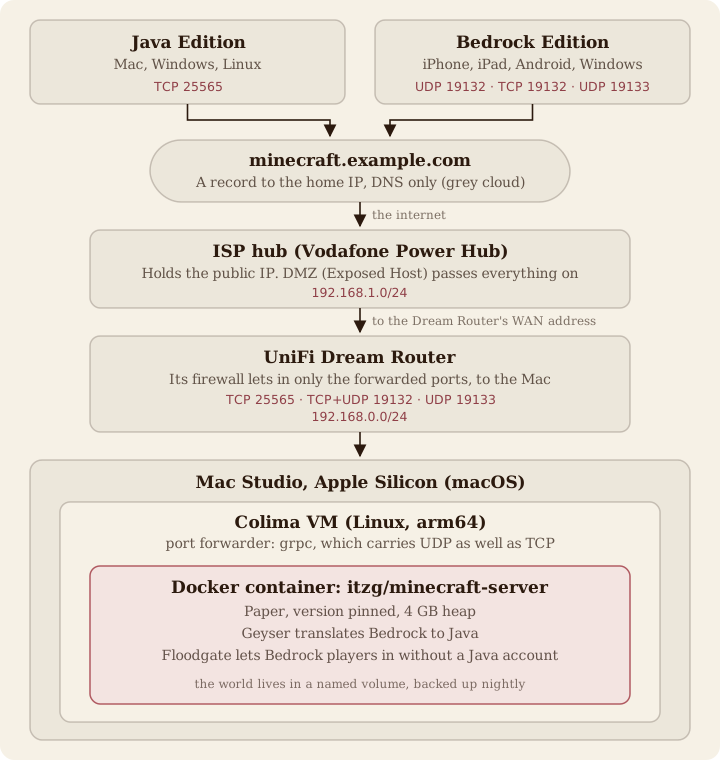
What you need
- An Apple Silicon Mac that stays on. Any M-series chip will do; the server takes a 4 GB heap, so 16 GB of memory is comfortable.
- Homebrew.
- Access to your router (or routers; see step 4).
- Optionally, a domain on Cloudflare, so players can type a name rather than your IP address.
1. Install Colima and Docker
Colima runs Docker in a small Linux VM, without Docker Desktop.
brew install colima docker docker-compose
colima start --cpu 4 --memory 8 --port-forwarder grpc
Homebrew's docker-compose prints a note about adding its plugin folder to ~/.docker/config.json; do that, so that docker compose works.
The --port-forwarder grpc flag matters more than it looks. Colima's default forwarder carries ports from the VM to the Mac over SSH, which only handles TCP. Java Edition is happy with TCP, but Bedrock is UDP, and it simply never arrives. If you already have a Colima VM, set portForwarder: grpc in ~/.colima/default/colima.yaml and run colima restart.
To have Colima start when the Mac does:
brew services start colima
2. Write the Compose file
The itzg/minecraft-server image is the standard choice. It is published for arm64, downloads the server for you, and handles plugins. Make a folder, say ~/minecraft, and put this in docker-compose.yml:
services:
  minecraft:
    image: itzg/minecraft-server
    restart: always
    ports:
      - "25565:25565"        # Java
      - "19132:19132/udp"    # Bedrock
      - "19132:19132/tcp"    # Bedrock's newer connection method (signalling)
      - "19133:19133/udp"    # Bedrock's newer connection method (data)
    environment:
      EULA: "TRUE"
      TYPE: PAPER
      VERSION: "26.3"         # pinned; raise it on purpose
      MEMORY: 4G
      USE_AIKAR_FLAGS: "true"
      PLUGINS: |-
        https://download.geysermc.org/v2/projects/geyser/versions/latest/builds/latest/downloads/spigot
        https://download.geysermc.org/v2/projects/floodgate/versions/latest/builds/latest/downloads/spigot
      PATCH_DEFINITIONS: /patches
      MOTD: My server
    volumes:
      - minecraft:/data
      - ./patches:/patches:ro
    stop_grace_period: 60s
    tty: true
    stdin_open: true

volumes:
  minecraft: {}
A few of those choices deserve a word.
Paper with Geyser and Floodgate. Paper is a faster drop-in for the Java server that also runs plugins. Geyser translates the Bedrock protocol to Java's, so Bedrock players join the very same world, and Floodgate lets them in with their Microsoft account alone, without owning Java Edition. Their names appear with a . in front so they never clash with a Java player's.
A pinned version. The image would otherwise install the newest Minecraft on every restart, and a world upgraded past your players' clients locks them out until they update. Pin it, and raise it when everyone is ready.
stop_grace_period. Docker gives a container ten seconds to stop by default, which is not always enough to save a large world.
Geyser's settings
Geyser writes its config.yml on first start. Rather than editing it by hand inside the volume, the image can patch it at every start. Save this as patches/geyser.json, replacing the address with your own:
{
  "file": "/data/plugins/Geyser-Spigot/config.yml",
  "ops": [
    { "$set": { "path": "$.bedrock.transport", "value": "both" } },
    { "$set": { "path": "$.bedrock.webrtc-port", "value": 19133 } },
    { "$set": { "path": "$.bedrock.signaling.mode", "value": "builtin" } },
    { "$set": { "path": "$.bedrock.signaling.advertise-addresses", "value": ["minecraft.example.com"] } },
    { "$set": { "path": "$.java.auth-type", "value": "floodgate" } }
  ]
}
Recent Bedrock clients can connect in two ways: the long-standing one over UDP 19132, and a newer WebRTC-based one that signals over TCP 19132 and sends its data over UDP 19133. transport: both accepts either, which is why the Compose file publishes all three. On a brand new server the file does not exist yet at the first start, so the patch takes effect from the second; restart it once after the first boot.
3. Start it and try it at home
cd ~/minecraft
docker compose up -d
docker compose logs -f
The first start downloads the server and plugins and generates the world, which takes a minute or two. It is ready when the log says Done. From another device on your home network, connect to the Mac's local address (System Settings › Network shows it). If that works, everything on the Mac is right, and whatever remains is the network.
While you are in your router, give the Mac a fixed address (a DHCP reservation), or the forwards in the next step will one day point at nothing.
4. Open the ports
With a single router, forward these to the Mac's address:
| Port | Protocol | For |
|---|---|---|
| 25565 | TCP | Java |
| 19132 | UDP and TCP | Bedrock |
| 19133 | UDP | Bedrock (newer method) |
Two routers: the double NAT
My house has two: the ISP's hub (a Vodafone Power Hub), which holds the public IP address, and a UniFi Dream Router behind it, which runs the home network. Traffic from outside has to get through both, and forwarding ports on the Dream Router alone achieves nothing, because the hub drops the traffic first.
The tidy answer is to have the hub pass everything to the second router and do the forwarding only there:
- On the hub, find the second router in the list of connected devices. It has an address on the hub's own network (for me
192.168.1.something, rather than the192.168.0.somethingof the home network behind it). - Give that address a static DHCP reservation on the hub, so it never changes.
- Set the hub's DMZ (Vodafone calls it Exposed Host, under Expert Mode) to that address.
- Make the forwards in the table above on the second router, pointing at the Mac.
This is less alarming than it sounds: the DMZ only exposes the second router, whose own firewall still admits nothing but the ports you forward. If your hub has no DMZ, forward the same ports on it to the second router's address instead.
Two things that will mislead you while testing. Anything on the hub's own Wi-Fi sits outside the second router, so test from a phone on mobile data with Wi-Fi off. And many routers will not loop a connection to your own public address back inside, so a test from home against the public address can fail even when the outside world gets in perfectly well.
5. Give it a name
Players can type your public IP address, but it changes from time to time and is a poor thing to hand out. If your domain is on Cloudflare, add an A record such as minecraft.example.com pointing at your home IP, with the proxy off (the grey cloud). Cloudflare's proxy only carries web traffic, so an orange-clouded name looks right and connects to nothing.
Home IP addresses change, so something has to keep the record current. Mine is a short script on a LaunchAgent that runs every five minutes, compares the public address with the record and updates it through the Cloudflare API when they differ. At its simplest:
ip=$(curl -fsS https://api.ipify.org)
curl -fsS -X PATCH \
  -H "Authorization: Bearer $CF_API_TOKEN" -H "Content-Type: application/json" \
  "https://api.cloudflare.com/client/v4/zones/$ZONE_ID/dns_records/$RECORD_ID" \
  --data "{\"content\":\"$ip\",\"proxied\":false}"
The token needs only DNS edit rights on that one zone.
6. Join
- Java: Multiplayer › Add Server, address
minecraft.example.com. The default port needs no mention. - Bedrock (iPhone, iPad, Android, Windows): Play › Servers › Add Server, the same address, port
19132.
Consoles cannot add custom servers without a workaround such as BedrockConnect, so they are best left out of your plans.
Keeping it in good order
-
Who may join. As written, anyone who finds the address can play. To admit only friends, add
ENABLE_WHITELIST: "true"andENFORCE_WHITELIST: "true", then/whitelist add <name>from the console (docker compose exec minecraft rcon-cli)./op <name>makes someone an operator. -
Backups. The world lives in the
minecraftvolume. For a consistent copy, pause saving, copy, and resume:docker compose exec minecraft rcon-cli save-off docker compose exec minecraft rcon-cli save-all flush docker run --rm -v minecraft_minecraft:/data -v "$PWD":/out alpine tar -czf /out/world.tgz -C /data . docker compose exec minecraft rcon-cli save-on(The volume's name is the Compose project name, here the folder's, followed by
_minecraft;docker volume lsshows it.) -
Restarts.
restart: alwaysbrings the server back whenever Docker starts, andbrew servicesstarts Colima at login, so a power cut sorts itself out.
When it does not work
- Java connects but Bedrock does not. Almost always UDP. Check that Colima's port forwarder is
grpc(colima listshows the VM;colima.yamlholds the setting), that the forwards include UDP 19132, and, after a brand new install, that the server has been restarted once so Geyser's settings apply. - Works at home, not from outside. Test from mobile data first. Then check every router between the internet and the Mac; with two, the outer one is the usual culprit.
- Nothing connects to the name, but the IP works. The DNS record is proxied (orange cloud), or it still points at an old address:
dig +short minecraft.example.comshould give your current public IP. - "Outdated server" or "outdated client". The pinned version and your players' clients differ. Raise
VERSION(never lower it on an existing world) or have players update.